Where each feature lives in the app, how to switch it on, and what to expect. Names in blue are the words you will see on the screen.
Start here
Install the app first, using the steps on the download page. Then read these four short sections once.
First launch
The first time you open EX Control it shows a safety notice, Read this before you continue.
Scroll to the end of the notice. The accept button only works once you have reached the bottom.
Tap I have read and accept. If you tap Do not accept, the app closes.
Connect the head unit to Wi-Fi with internet at least once, so the app can check your subscription and look for updates.
Change settings only while parked.
EX Control changes the same settings the car's own screens do. Drive mode and regeneration cannot be changed in Park at all; everything else should be set up before you drive.
Finding your way
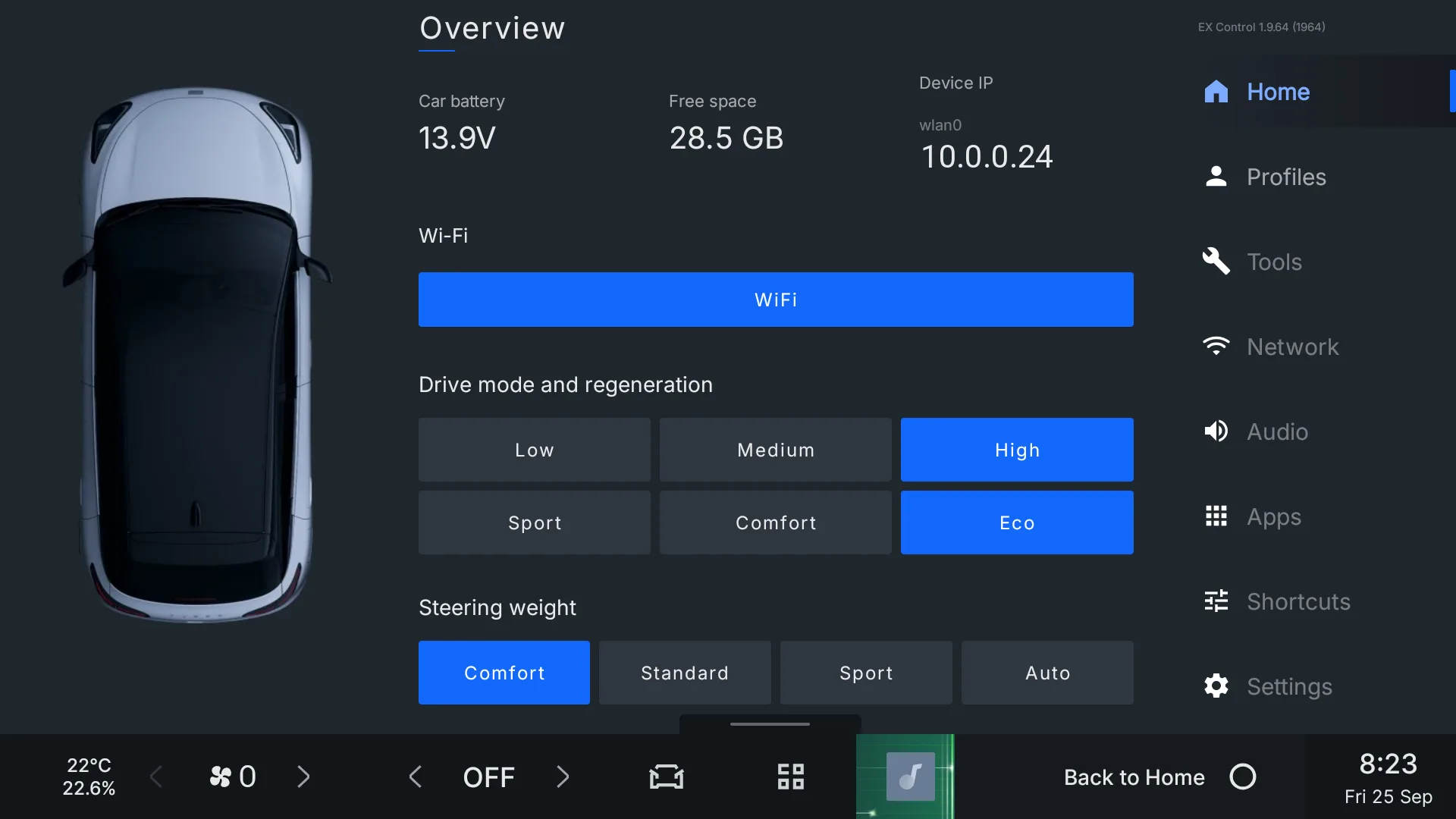
The app opens on Overview. Every screen has the same menu down the right side. Some menu items have tabs along the top.
Menu
What is in it
Home
Battery, free space, IP address, wireless projection, Wi-Fi, drive mode, regeneration and steering weight.
Profiles
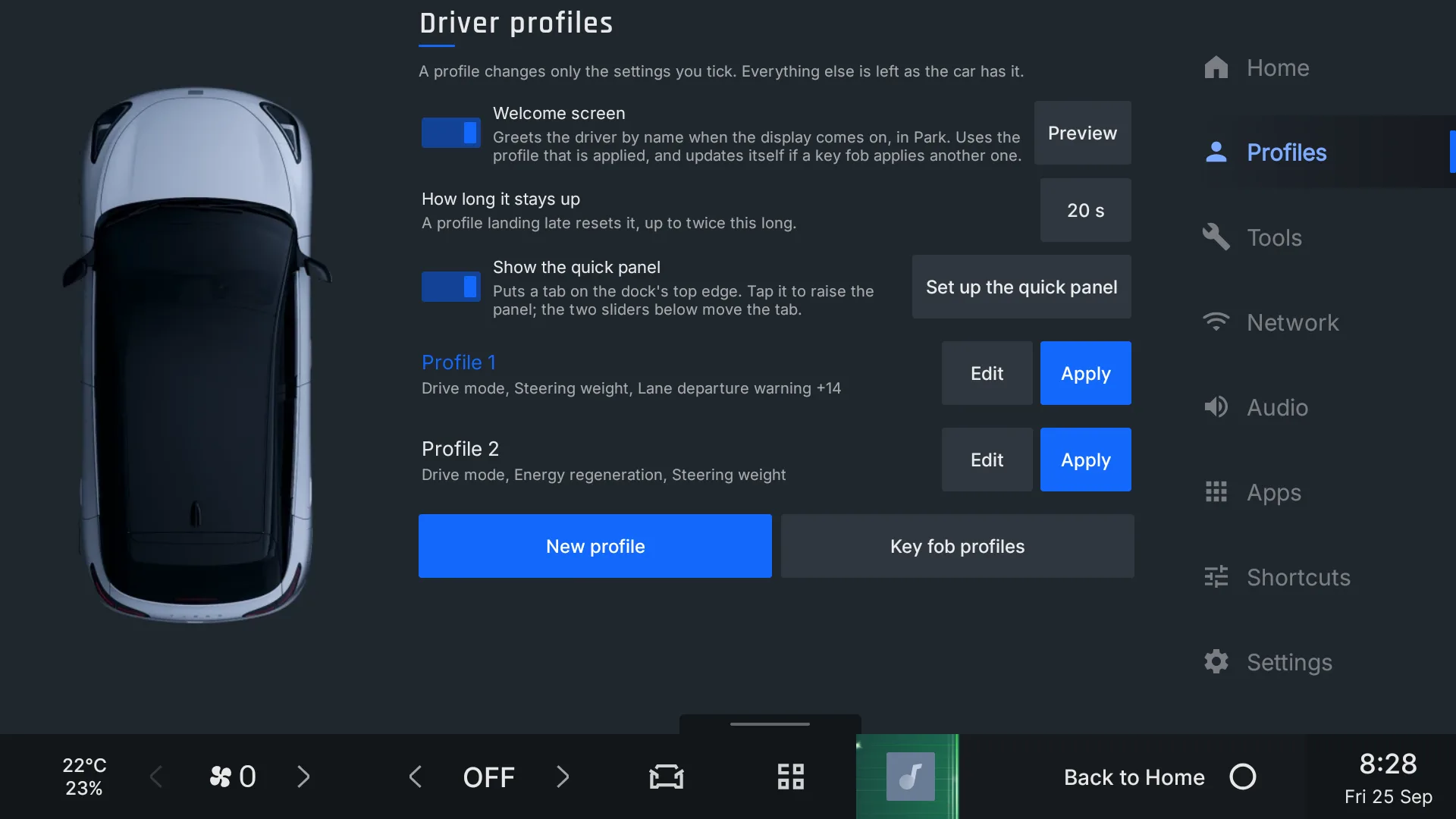
Driver profiles, the welcome screen and the key fob link.
Tools
Tabs: Notification Bar, Screen, Climate, Camera & Safety, Dock, Regen, Battery.
Network
Tabs: Connectivity, AA & CarPlay, Bluetooth, Mirroring.
Audio
Tabs: Sounds, AVAS, Media.
Apps
Tabs: Installer, App manager.
Shortcuts
Wheel controls, the climate widget's controls, the quick panel, media extras.
Settings
Home Assistant, updates, subscription, workshop mode, log, about, restart.
The Overview screen. The menu on the right is the same everywhere.
Subscription and codes
Most features are free. Profiles (with the key fob link and welcome screen), the quick panel, home screen widgets, the automatic camera and screen mirroring need a subscription. Automatic regeneration is a separate add-on. Until 1 November 2026 every feature is open to everyone.
Settings→Subscription→Manage subscription
This screen shows your status (for example Licensed until a date, or Lifetime licence), your Device ID, and which features are unlocked.
To subscribe:
Make sure the head unit is on Wi-Fi.
Tap Subscribe and pick a plan (monthly, annual or lifetime, or the automatic regeneration add-on).
Read and accept the safety notice.
Scan the QR code with your phone and pay by card on the PayFast page. The car screen updates by itself when payment arrives.
To use a code: on the Subscribe screen tap Have a code?, type it in (it looks like EX-XXXX-XXXX) and tap Use code. A free-access code unlocks straight away. A discount code lowers the prices shown.
Free trials: under Try it first you can start a 14-day trial of the subscription, and a 7-day trial of automatic regeneration. Each trial works once per car. They appear after the introductory free period ends.
Stay online once a month. A subscription has to be checked over Wi-Fi at least every 30 days. If it has not been checked for longer, the paid features lock until the car is next online. Tap Check now on the Subscription screen to check straight away.
Locked features show a red line: Subscription required, with the feature's name.
Updates
The app checks for updates by itself when Wi-Fi comes on, when you open it, and every 12 hours.
With a subscription you see a banner, Version X is available. Tap to install. Install when it suits you.
Without a subscription a new version must be installed before the app can be used again. The Updates screen offers Install, Check for updates and Subscribe instead.
If the car has not been online for 30 days you get a reminder. Without a subscription, a daily warning starts in the last week, and the app stops after 60 days offline.
Driver profiles
A profile changes only the settings you add to it. Everything else stays as the car has it.
Profiles Subscription
Profiles
Create a profile:
Tap New profile.
Enter a Profile name. Optionally add a Driver name for the welcome screen.
Tap Add setting and tick what this profile should change, then Done.
Set each value. Or tap Read from car to copy what the car is set to right now.
Tap Save.
Apply a profile: tap Apply next to it. You can also apply one from the profile widget, the quick panel, or by unlocking with a linked key fob. The last profile applied is highlighted.
Change or delete: tap Edit. To stop a profile changing something, remove that setting's row. Delete removes the whole profile.
Climate: A/C, temperature, fan speed, airflow, recirculation.
Comfort: seat heating (driver and passenger), steering wheel heating, cabin atmosphere lamps, head unit day/night mode.
Driver assistance: lane keeping, lane departure warning, blind spot detection, cross traffic alerts, collision warnings, emergency braking, traffic sign recognition, speed limit warning, parking sensors, hill descent control, automatic parking brake and more. Only the ones your car reports are offered.
Camera: camera on approach and on depart.
Settings marked Not confirmed on this car may not take effect. Automatic regeneration in a profile needs the add-on, and the camera settings need the subscription.
The Profiles screen.
Key fob link Subscription
Unlock the car with a particular key and that driver's profile is applied.
Profiles→Key fob profiles
Under Detection, turn on Watch for key fobs.
Press unlock on the first key. It appears under Key fobs as Key fob 1, Not linked.
Tap Link and choose the profile for that key.
Repeat with the other key.
The same screen has two extras:
Lock when the key leaves: the car's own walk-away locking.
Double-press unlock stops charging: press unlock twice to end a charging session. Needs key fob watching on.
Remembered climate Subscription
Each driver gets back the temperature and fan they had at the end of their last drive.
Profiles→Edit→Remember my climate
Turn the switch on in each profile that should remember. The climate is saved just before another profile is applied. If you also set a fixed temperature or fan in the profile, the fixed value wins.
Preferred phone Subscription
Choose which phone Android Auto or CarPlay connects to for this driver.
Profiles→Edit→Preferred phone
Pick a paired phone, Any (whichever shows up first), or Don't change. The phone must already be paired with the car over Bluetooth.
For the whole car rather than per driver, use Network → AA & CarPlay → Preferred phone.
Welcome screen Subscription
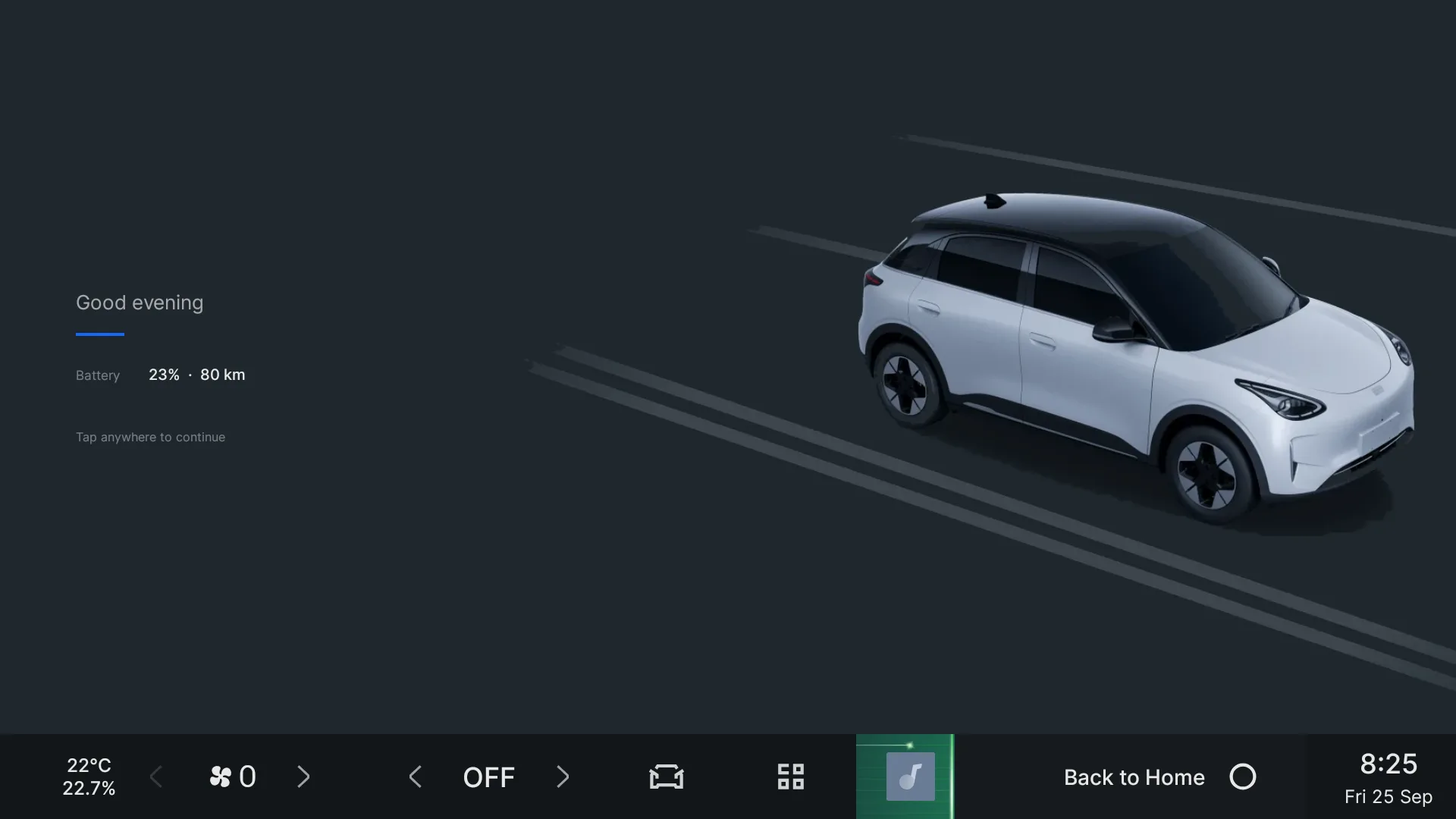
A greeting when the display comes on in Park: good morning or evening, the driver's name, the profile, and battery and range.
Profiles→Welcome screen
Turn on the Welcome screen switch at the top of the Profiles screen.
Tap Preview to see it now.
Use How long it stays up to pick 1 to 60 seconds. The default is 10.
The name comes from Driver name for the welcome screen in the applied profile. If a key fob applies a different profile while it is showing, it updates itself.
The welcome screen.
Home screen widgets Subscription
EX Control has three widgets for the car's home screen: Profile (apply a driver in one tap, up to 5 profiles), Climate, and Drive mode and regeneration.
First, once per car: the car's launcher only lists widgets it has been told about.
Shortcuts→Home screen widgets→Install
The home screen restarts, and the card then says Installed. Remove takes the widgets back out of the picker.
Then add a widget:
On the car's home screen, open the widget picker for the Quick Access Bar card.
Choose the EX Control widget you want. They are listed under the app's name.
If the subscription ends, the widgets are removed from the home screen and from the picker. When you renew, they return to the picker and you add them again.
Workshop mode takes the widgets out of the picker while the car is in for service, and puts them back when it ends. If a widget is gone from the home screen afterwards, add it again.
Driving
Quick panel Subscription
A strip that rises from the dock over any app, Android Auto and CarPlay included.
Shortcuts→Quick panel→Set up the quick panel
Turn on Show the quick panel. A small tab appears on the top edge of the dock.
Tap the tab to raise the panel. Tap outside it, or the grab bar, to lower it.
Use Tab position across the screen, Tab lift above the dock and Tab width to place the tab where your thumb finds it. Move the tab back resets it.
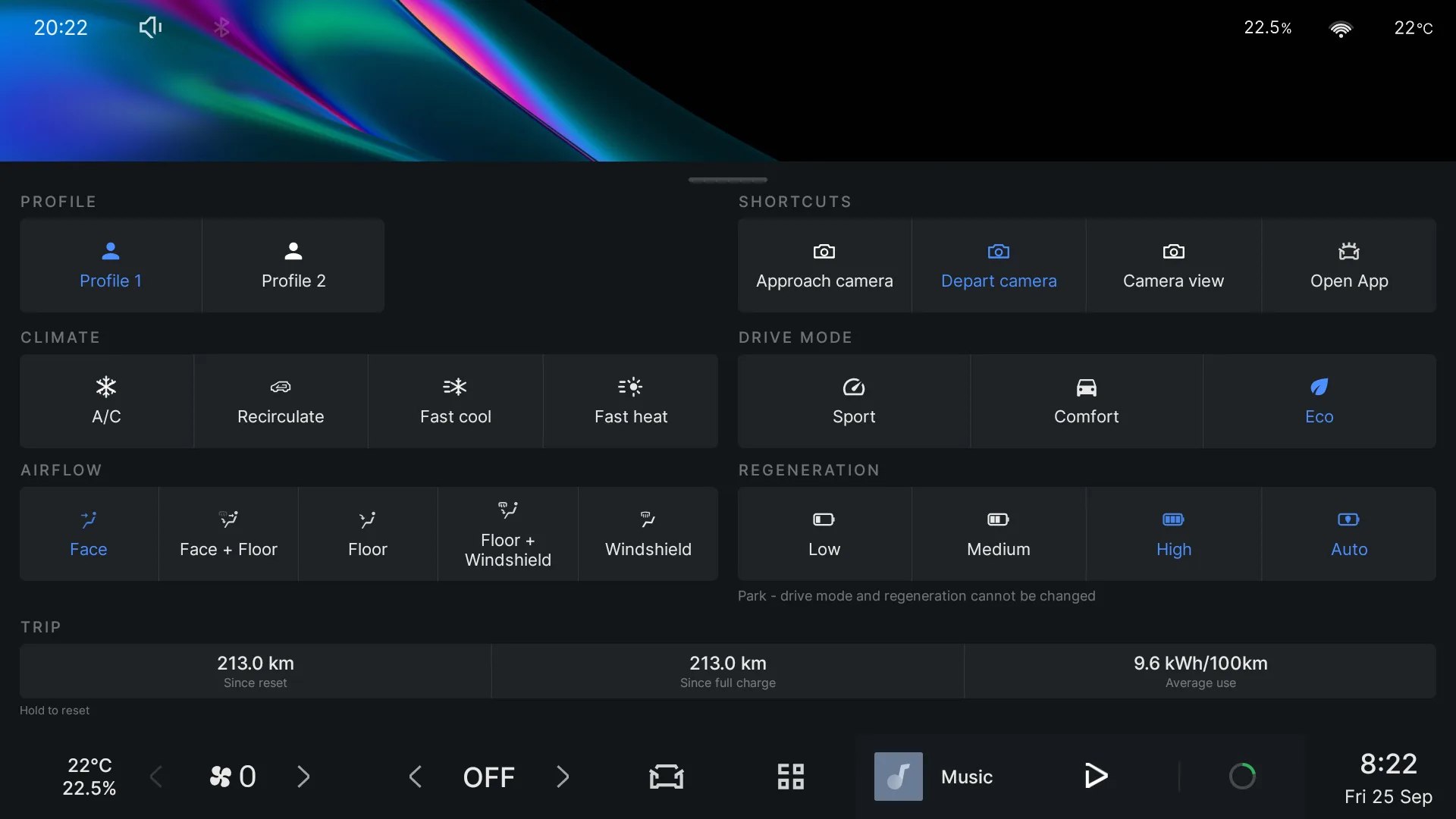
Choose what it shows: tap Add shortcut and pick from Profile, Drive mode, Regeneration, Airflow, Climate (A/C, recirculate, fast cool, fast heat) and Shortcuts (cameras, open an app, start Android Auto or CarPlay, mirror phone). Use the arrows to reorder, and remove what you do not want.
Other options:Open on the home screen raises it whenever you go home. Trip readouts adds distance and consumption.
The gear icon on the panel opens these settings. Temperature and fan are left out on purpose: the dock already has them.
The quick panel raised.
Automatic regeneration Add-on
The car learns where you change the regeneration level and changes it for you next time you pass.
Tools→Regen
Turn it on: tap Turn on next to Auto is off. Or tap Auto, the fourth choice after Low, Medium and High, on the drive widget or the quick panel. A profile can turn it on too.
Teach it: with Auto on, drive as usual and change the regeneration level where you want it changed. The place, direction and speed are remembered as a point. Points belong to the car, not to one driver.
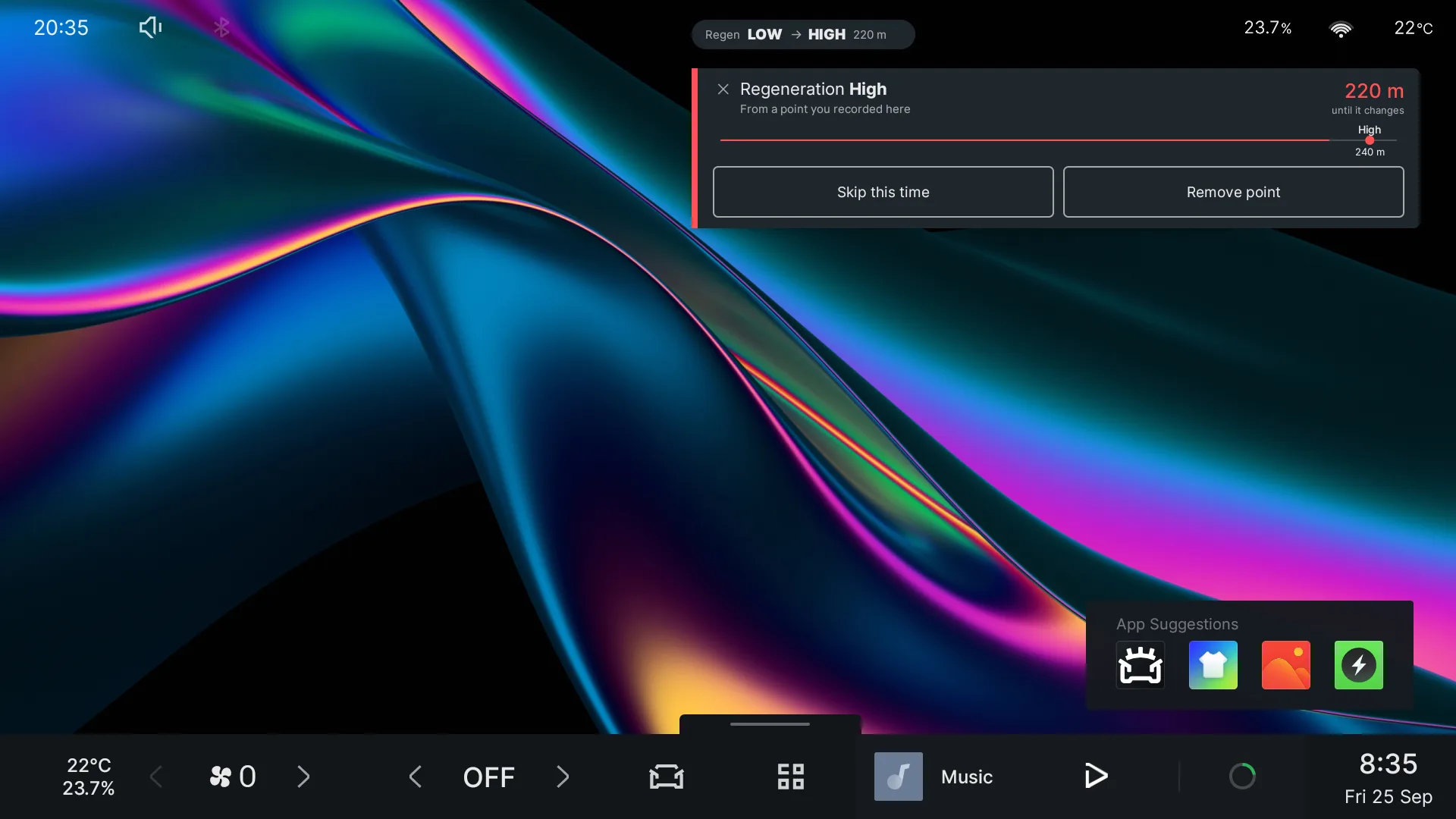
When you approach a point: a card counts down the metres, and the level changes at the point.
Skip this time before the change, or Undo just after.
Remove point deletes it for good.
Skip all and Manage points appear when several points are close together.
The pill:Show the level on screen adds a small pill with the current level. Drag it to move it. Tap it to see Points on this road, where each point can be edited or removed.
Manage points: the Points list on the Regen tab lets you name, mute or delete each one. Recent decisions shows what Auto did and why.
Points only act above 10 km/h. Ignore points at the wrong speed (on by default) skips a point recorded at a very different speed.
Approaching a point: the pill counts down and the card lets you skip it.
Drive mode and regeneration buttons Free
Home→Drive mode and regeneration
Tap Low, Medium or High for regeneration, and Sport, Comfort or Eco for drive mode. The same buttons are on the drive widget and the quick panel.
The car refuses both changes in Park. The app tells you so rather than failing silently.
Steering wheel modes Free
Turn the wheel's arrow buttons into climate or drive controls.
Shortcuts→Wheel Controls→Activate
Double-tap the voice key: air conditioning mode. Up and down change temperature, left and right change fan.
Hold the voice key for 2 seconds: drive and regeneration mode. Up and down change regeneration, left and right change drive mode.
A bar on screen shows which mode you are in. Tap Deactivate to turn it off. The setting survives a restart.
Steering weight Free
Home→Steering weight
Choose Comfort, Standard, Sport or Auto. A profile can set it too.
Trip readouts Free
Distance since reset, distance since the last full charge, and average consumption.
In the quick panel: turn on Trip readouts in the quick panel settings. To reset, hold your finger on the readouts, then tap Reset.
In the top bar:Tools → Notification Bar → Mileage in the bar, with a Reset trip button.
Play and pause from the wheel Free
Always on, nothing to set up. Hold volume down to pause, hold volume up to play. It never resumes music during a call.
Android Auto and CarPlay
Screen mirroring SubscriptionBeta
Show your phone's screen on the head unit over Miracast.
Network→Mirroring→Open screen mirroring
Open the screen above, or tap Mirror Phone on the quick panel. It says Ready.
On your phone open Smart View (Samsung) or Cast, and pick EX Control.
To stop, tap the car screen and then Stop mirroring, or tap Close.
It takes over the car's Wi-Fi.
While mirroring, wireless Android Auto, CarPlay, the hotspot and home Wi-Fi are paused. They come back when you close the screen. Copy-protected apps such as Netflix, Disney+ and Prime Video will not show. This feature is still being proven on the car.
Projection fixes Free
Fixes for wireless Android Auto and CarPlay. All are off until you turn them on.
Network→AA & CarPlay→Open projection fixes
Easiest: under Profile, choose IHU629G build 25 (South Africa) to turn on every fix tested on that unit.
Or pick individual fixes, for example:
Restore Bluetooth after a CarPlay session and Keep Bluetooth on during a CarPlay session.
Keep Wi-Fi on during wireless Android Auto / CarPlay.
Only trigger CarPlay for Apple devices, so Android phones are not offered CarPlay.
Show the CarPlay screen on connect.
Dismiss the assistant on a wheel shortcut.
Under Start a session you can start Android Auto or CarPlay by hand.
Some fixes apply the next time the car starts. The screen tells you which.
Per-phone control Free
Network→Bluetooth
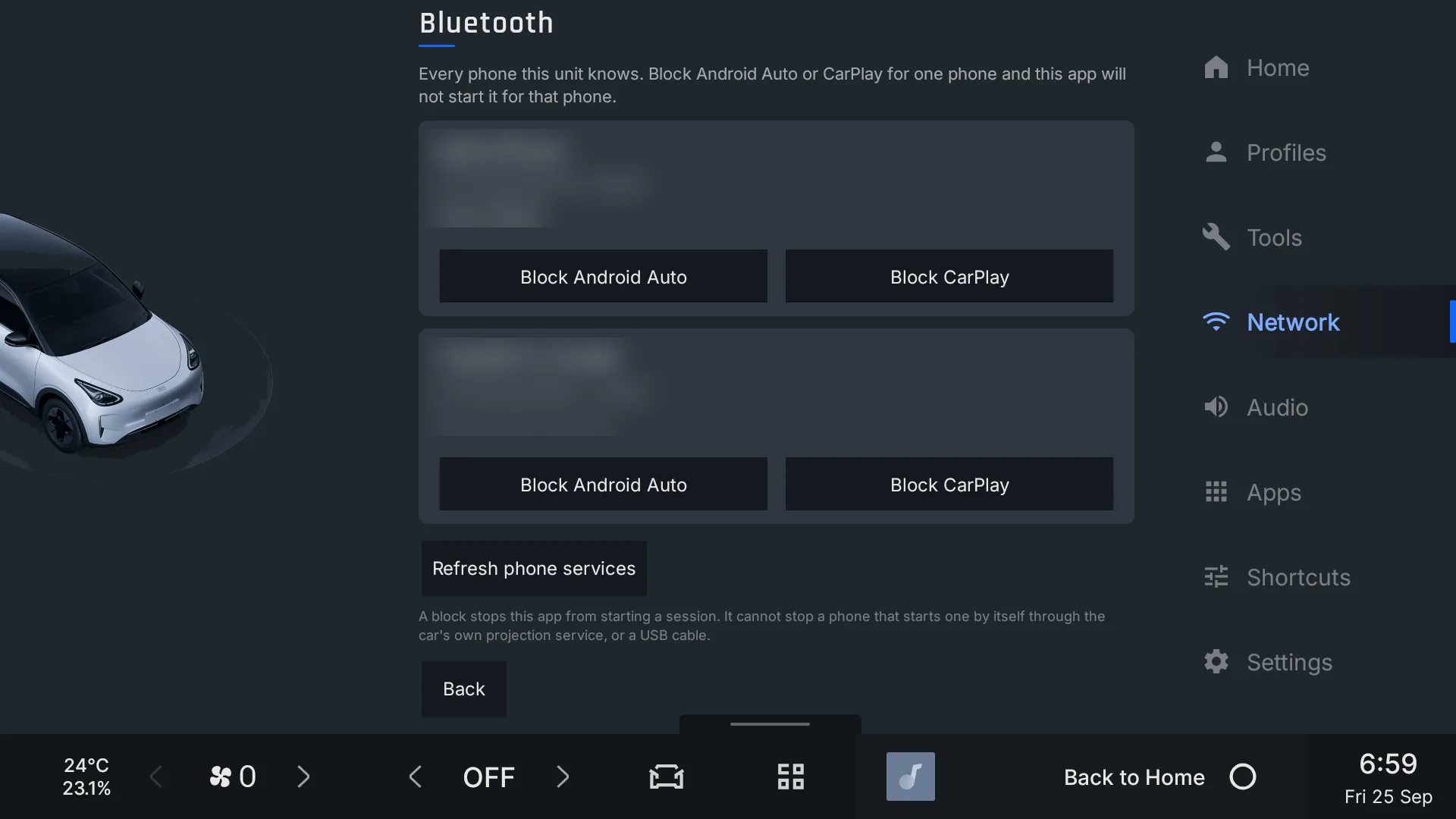
Every paired phone is listed with what it uses: Uses Android Auto, Uses CarPlay, or nothing seen yet. Tap Block Android Auto or Block CarPlay to turn either off for that phone, and Allow to undo.
A block cannot stop a USB session, or a phone that starts a session through the car's own service.
Network, Bluetooth.
Full-screen Android Auto Free
Projection fixes→Separate packages→Android Auto full screen
Tap Turn on for Full screen, dock hidden, or Turn off for Windowed, dock visible. Do not change it during a session: it restarts Android Auto.
If touches land in the wrong place, install Android Auto touch alignment from the same section.
Wi-Fi when the car wakes Free
At unlock or start:Network → Connectivity → Turn on WiFi when opening the car.
While charging:Settings → Home Assistant → Configure → Keep Wi-Fi on while charging. Works only while the head unit is awake.
Hide any control your car does not have, or you never use. Controls the car lacks are marked Not on this car. Show all brings everything back. Tapping the widget's title also opens this screen.
Recirculation that stays Free
Stops the car letting outside air in when you turn the A/C off.
Shortcuts → Climate widget → Choose controls → Keep recirculation when A/C goes off. Only acts if recirculation was already on.
For the defroster and climate-off cases: Tools → Climate → Prevent outside-air opening.
Climate schedules Free
Tools→Climate→A/C Schedule→Manage schedules
Build timed steps of temperature, fan and recirculation. Run a saved schedule with a quick tap on the temperature/battery pill in the top bar.
Camera and lighting
Camera on approach / depart Subscription
The parking camera comes up by itself when you creep towards something after a stop, or pull away slowly.
Tools→Camera & Safety→Camera on Approach/Depart→Set it up
Turn on Camera on approach, Camera on depart, or both.
Set Comes up below and Turns off above (km/h).
Use Show for 8 s to test that the camera works on your car.
Both can also be carried in a profile, or added as quick panel tiles.
Camera on indicator Free
Tools→Camera & Safety→Rear camera on turn signal
Turn the switch on. The side view shows in the car's own camera screen while you indicate. The 5s icon keeps it up 5 seconds longer.
Cabin lighting Free
Switch the atmosphere lamps by hand, or keep them on between set times.
Tools→Screen→Cabin lighting→Open cabin lighting
Use the Atmosphere lamps switch to turn them on or off now. The line under it says what the car reports.
For a schedule, turn on Switch on a schedule, then set On at and Off at. The default is 18:00 to 23:00.
The head unit sleeps when the car is locked, so a time that passes while it is locked is applied the next time the screen comes on. A driver profile can also switch the lamps. See Profiles.
Tools
Battery history Free
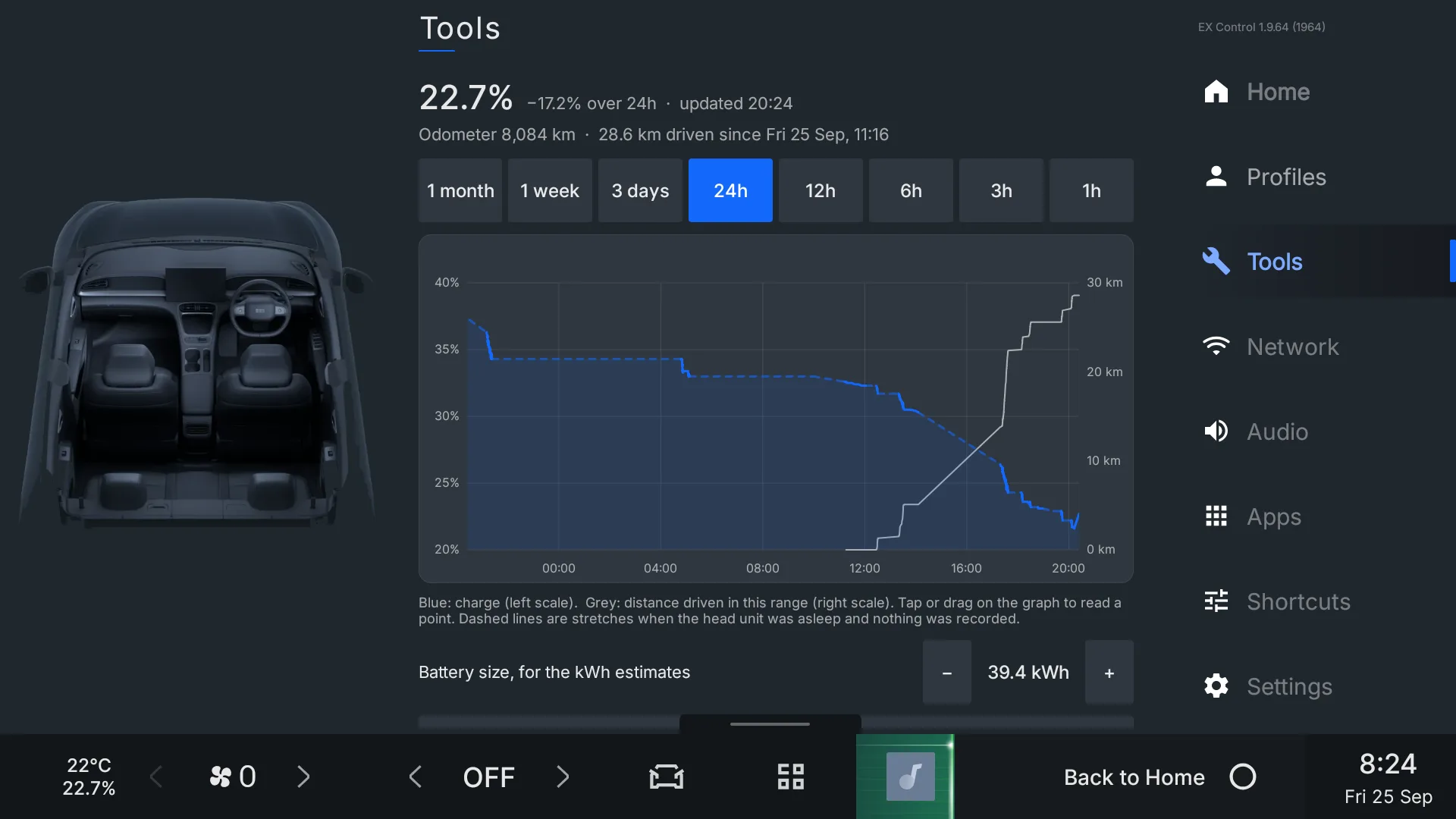
Tools→Battery
Always recording, nothing to turn on. Pick a range from 1 hour to 1 month, and tap or drag the graph to read any moment.
Measure between two points: tap A, then B, to see charge and distance between them.
Sessions: past charges and drives.
Export to USB (CSV): saves the history to a USB drive.
Battery history.
App manager and installer Free
Manage apps:Apps → App manager. Search, filter by user, system or disabled apps, enable or disable an app, clear its cache or data, and set a Boot policy so it is always on or always off at start.
Install from USB: copy APK, XAPK or APKM files to a USB drive and plug it in. Then Apps → Installer → Install APK from USB → List, pick the file and tap Install.
Day and night schedule Free
Tools→Screen
Under Switch it automatically, choose Sunrise or Set times.
For set times, choose Day at and Night at.
Appearance on the same tab sets EX Control's own look: Light, Dark, or follow the head unit.
Home Assistant Free
Settings→Home Assistant→Configure
Enter your Home Assistant address, for example http://homeassistant.local:8123.
Paste a Long-lived access token, or tap Sign in instead and use your username and password.
Tap Test connection.
Under What it may do, choose what to allow: Send telemetry, Let Home Assistant set the climate, and Let Home Assistant lock and open.
Show helper YAML gives you ready-made Home Assistant configuration.
Locking and opening is off by default.
Anyone who can reach your Home Assistant could then unlock the car. Only turn it on if your Home Assistant is secured.
Workshop mode Free
Makes the head unit look factory-stock before you hand the car in for a service.
Settings→Workshop mode→Prepare for service
This hides EX Control, its widgets and the quick panel, and puts wireless Android Auto back to stock.
To get everything back, do any one of these:
Tap the bottom-left corner of the screen, just above the bottom bar, 5 times quickly.